Two Ways We Turned a MacBook Air into a Gaming Machine
A technical field guide to running Counter-Strike: Condition Zero and Counter-Strike: Source through a paid CrossOver setup, then streaming GTA V from a PS5 to a MacBook Air and a 4K monitor with PS Remote Play.
On this page
A MacBook Air is an excellent silent laptop and an unusual place to look for a Windows gaming rig. That made the experiment more interesting.
We tried two very different paths:
- Translate the Windows game locally with a paid CrossOver subscription, Wine bottles, and Steam.
- Move the game execution to a PS5 and use Sony's PS Remote Play app to turn the Mac—and then a large 4K monitor—into the display and control endpoint.
The first path got Counter-Strike: Condition Zero and Counter-Strike: Source running locally. The second put GTA V on the big screen with crisp, genuinely impressive image quality. Both ran far better than the phrase “gaming on a MacBook Air” tends to imply. In less technical language: it ran like butter.
These are not the same trick. CrossOver translates Windows APIs while the Mac renders the game. Remote Play renders the game on the PS5, compresses the frames, and sends an interactive video stream to the Mac. Understanding that split is the key to configuring and troubleshooting both.
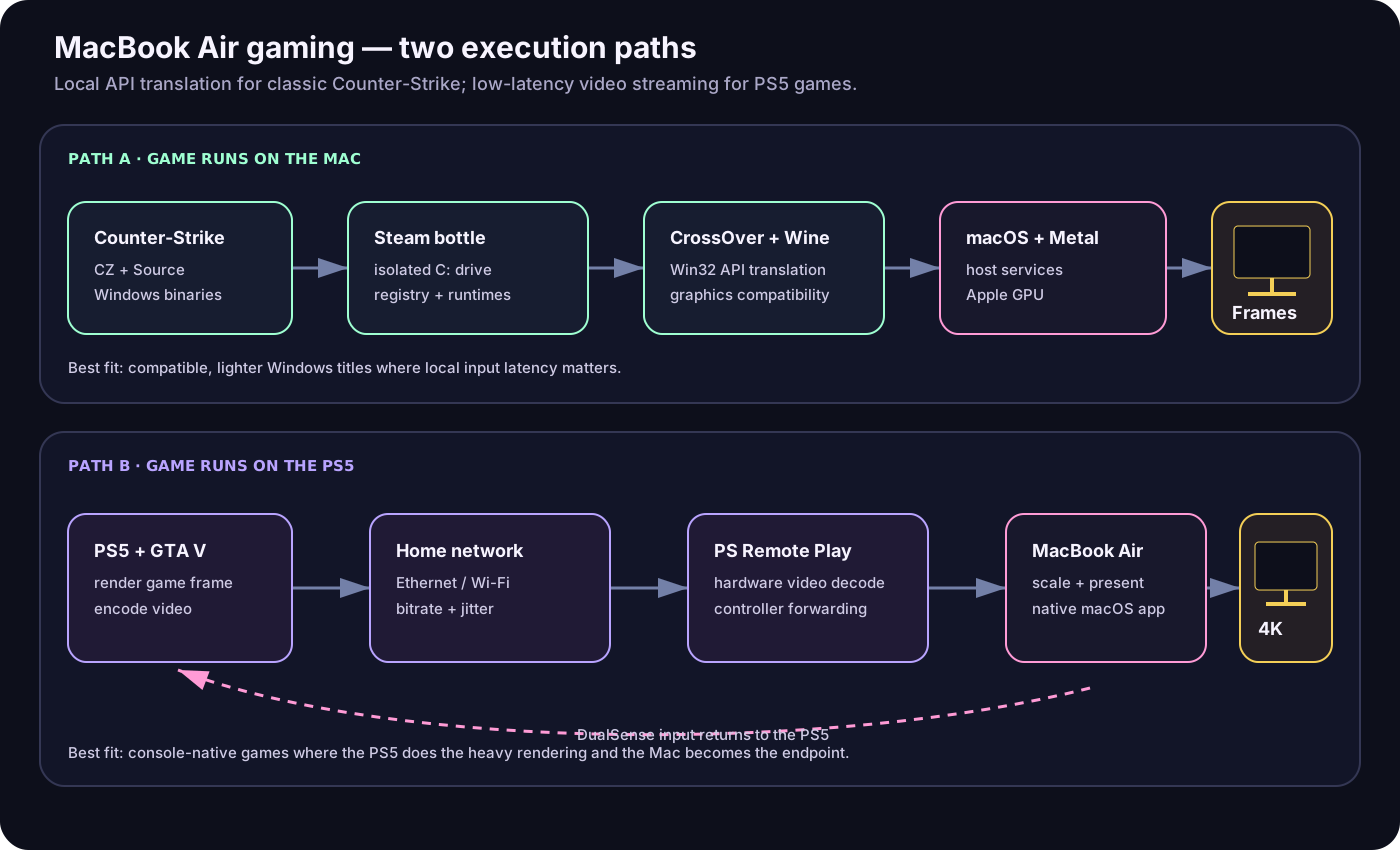
Two routes, one thin laptop: translate the game locally, or stream finished frames from the console.
The test setup
Our setup was intentionally ordinary:
- an Apple-silicon MacBook Air;
- a paid CrossOver for Mac subscription;
- the Windows version of Steam installed inside CrossOver;
- legitimately owned copies of Counter-Strike: Condition Zero and Counter-Strike: Source;
- a PS5 with Remote Play enabled;
- the native PS Remote Play macOS app;
- a DualSense controller;
- a large 4K external monitor connected to the MacBook Air;
- a fast local network.
There was no full Windows virtual machine and no dual boot. CrossOver does not boot Windows: it translates the Windows calls made by an application into services that macOS can provide. The PS5 route is even more literal—the PS5 does the gaming work and the Mac decodes the resulting stream.
Path one: CrossOver, Wine, and the bottle model
CrossOver is CodeWeavers' commercial, supported product built around Wine. Wine is a compatibility layer, not a CPU or whole-machine emulator. A Windows application still believes it is calling familiar Windows APIs, but those calls are implemented or translated on the host platform.
CrossOver packages that machinery into bottles. A bottle is an isolated Windows-like environment containing:
- a simulated
C:drive; - registry state;
- the selected Windows version;
- installed runtimes and DLLs;
- per-bottle graphics and compatibility settings;
- the application and its launcher.
This isolation is important. A tweak that helps one game can hurt another. Instead of creating one enormous mystery bottle, we can keep a known-good Steam/game environment, duplicate it before experiments, and roll back by returning to the working copy.
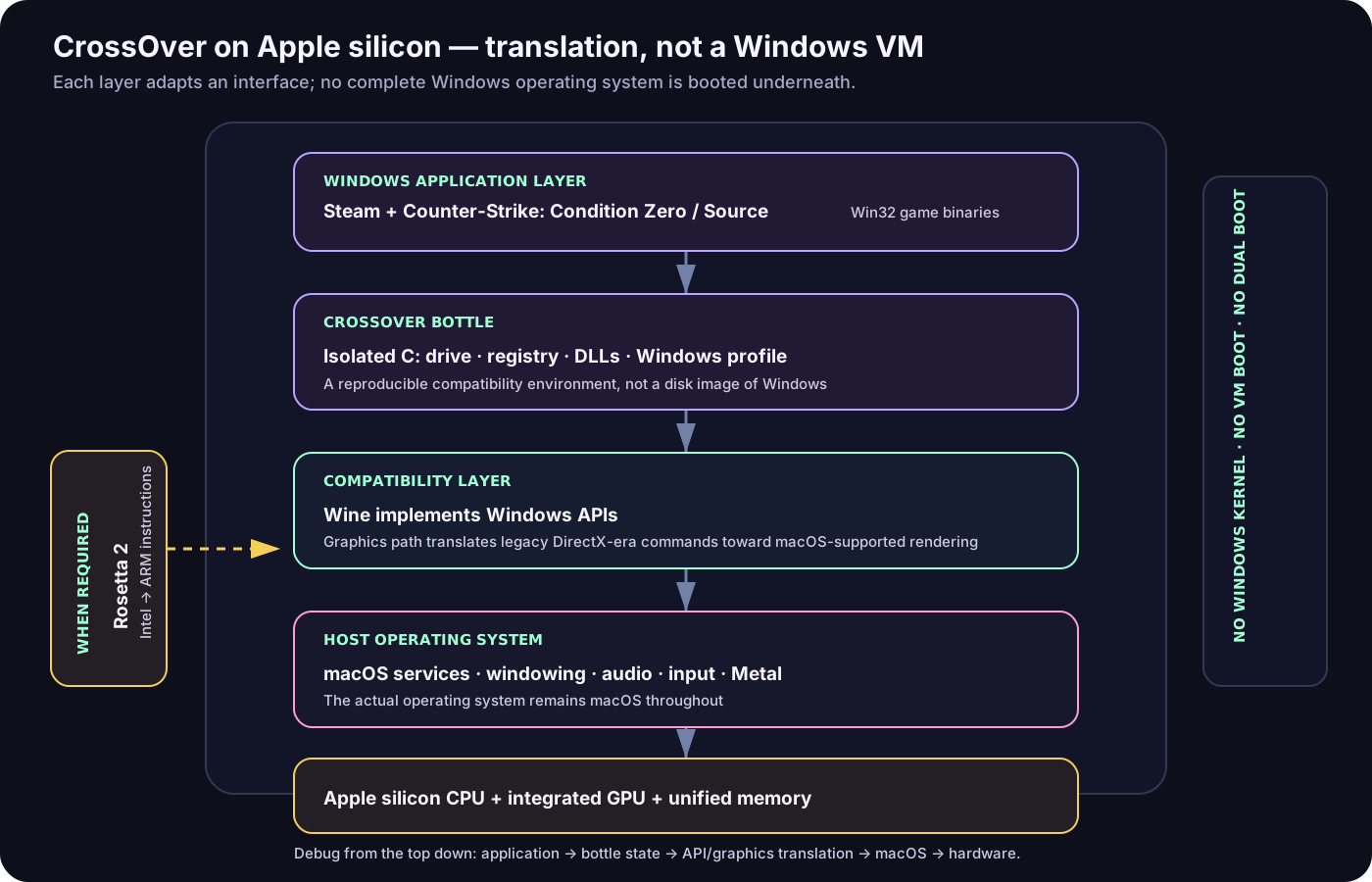
The game still speaks Windows. CrossOver and Wine act as a very patient multilingual graphics engineer.
Why the paid CrossOver build mattered
Vanilla Wine is powerful, but assembling a reliable game stack by hand means choosing patches, Wine builds, graphics translation layers, dependencies, and launch settings yourself. The paid CrossOver subscription gave us a curated macOS application, installation recipes, updates, and support around that stack. It also funds CodeWeavers' Wine work.
That did not make every Windows title magically compatible. Anti-cheat drivers, launchers, unusual DRM, and newer graphics APIs remain title-specific. But these older Counter-Strike games are a friendly target: they have modest hardware demands and mature DirectX-era render paths.
Installing Steam and the Counter-Strike games
The repeatable workflow looked like this.
1. Install CrossOver and let macOS finish its prerequisites
We installed the current supported CrossOver release from our paid account and opened it once so macOS could complete any required security prompts and compatibility setup. On Apple silicon, CrossOver may rely on several translation layers depending on the Windows binary and graphics path; keeping macOS and CrossOver current avoids debugging an already-fixed compatibility bug.
2. Create a dedicated Steam bottle
Inside CrossOver we chose Install a Windows Application, selected Steam, and installed it into a fresh 64-bit Windows bottle. We kept this bottle dedicated to the Counter-Strike setup rather than mixing it with productivity software.
A useful naming convention is boring on purpose:
steam-counter-strike-win64
After Steam completed its own update, we signed in normally and installed Counter-Strike: Condition Zero and Counter-Strike: Source from the library. CrossOver's bottle contains the Windows Steam client and downloaded game files; the macOS Steam client is not involved in launching these Windows builds.
3. Treat graphics options as a controlled experiment
CrossOver exposes graphics switches whose availability and names vary by release. Depending on the game, these may select a DirectX-to-Metal or DirectX-to-Vulkan translation path, synchronization optimizations, or high-resolution behavior.
The discipline matters more than memorizing a universal toggle:
- Start with CrossOver's recommended defaults for the application.
- Launch one game and test the menu, a local map, audio, mouse input, and quit/relaunch.
- Change one graphics option at a time.
- Record whether launch time, frame pacing, visual corruption, or stability changed.
- Keep the simplest working configuration.
For these older Counter-Strike titles, piling on modern translation features is not automatically better. The objective is a stable render path with even frame delivery, not the greatest number of enabled checkboxes.
4. Tune the game, not only the compatibility layer
We started with a conservative resolution and disabled unnecessary overlays while proving the basic path. Once a map loaded cleanly, we raised the in-game resolution and detail settings incrementally.
Useful Source/GoldSrc-era checks include:
- use the renderer selected by the known-good CrossOver recipe;
- turn off Steam Overlay temporarily if startup or focus behaves strangely;
- avoid forcing a huge Retina backing resolution before the game is stable;
- test fullscreen and windowed modes separately;
- verify mouse capture, audio, and map changes—not just the opening menu;
- cap frame rate only if unlimited rendering causes heat or uneven pacing.
The result was the pleasant surprise: both Condition Zero and Source felt responsive and smooth on the Air. These games are old enough to be light, but the experience still depends on the entire translation chain behaving correctly. When it does, there is no Windows desktop sitting underneath and no VM window to manage—just the game.
A practical bottle configuration matrix
CrossOver changes over time, so this is a decision table rather than a claim that one switch works everywhere.
| Layer | Start here | Change it when |
|---|---|---|
| Bottle | Fresh 64-bit Windows bottle for Steam | A title's recipe explicitly requires a different Windows profile |
| Dependencies | Let the CrossOver recipe install them | The game reports a specific missing runtime or DLL |
| Graphics | Recommended/default path | You see a black screen, broken shaders, or severe frame-pacing problems |
| Enhanced sync | Off unless recommended | Input or frame scheduling improves in a controlled A/B test |
| Display | Moderate in-game resolution first | The game is stable and the display path is confirmed |
| Steam Overlay | Off while diagnosing | Re-enable after launch, focus, and input are reliable |
| Bottle changes | One at a time | Never shotgun five toggles and guess which one helped |
Before a risky change, duplicate the working bottle. Bottle copies consume disk space, but they are cheaper than reconstructing a setup from memory.
Path two: PS5 to Mac with Remote Play
The second experiment inverted the architecture. Instead of convincing a Windows game to run on macOS, we left the game on hardware designed for it.
The PS5 performs simulation and rendering. Its Remote Play service encodes the frames into a low-latency video stream. The network carries compressed video to the Mac and controller input back to the console. The Mac decodes and displays the stream.
controller input ───────────────────────────────► PS5
                                                     │
                                                     ▼
Mac + 4K monitor ◄── decoded video ◄── network ◄── encoder
Sony recommends at least 5 Mbps in both directions and at least 15 Mbps for the best performance. Those are internet-oriented minimums; inside the house, latency, Wi-Fi contention, packet loss, and consistency matter as much as headline bandwidth.
PS5 configuration
On the PS5 we used:
Settings → System → Remote Play → Enable Remote Play
To allow wake-from-rest connections, Sony also requires:
Settings → System → Power Saving
  → Features Available in Rest Mode
  → Stay Connected to the Internet
  → Enable Turning on PS5 from Network
On the Mac, we installed the official PS Remote Play app, signed in with the same PlayStation account, attached the DualSense controller, selected PS5, and let the app discover the console. If automatic discovery fails, the PS5 can display a manual pairing code under Remote Play → Pair Device while both machines are on the same network.
Network topology matters
The cleanest home setup is:
- PS5 connected to the router by Ethernet;
- MacBook Air on a strong 5 GHz or 6 GHz Wi-Fi link, or Ethernet through a dock;
- both devices close in network terms, without guest-network isolation;
- bulk downloads and cloud backups paused during latency testing.
Every wireless hop adds another opportunity for interference and retransmission. Ethernet on the console removes one unpredictable radio leg even when the Mac remains wireless.
GTA V on the 4K screen
We launched GTA V on the PS5, connected through Remote Play on the MacBook Air, and moved the app to the external 4K monitor. The result looked crisp and amazing on the large screen: dense city detail, bright highlights, readable UI, and smooth motion held together far better than expected.
There is an important technical footnote. A 4K monitor does not prove the Remote Play stream itself is native 4K. The display presents a 3840×2160 canvas, while the app decodes the resolution negotiated by Remote Play and macOS scales that image to the window or full screen. Image quality is the combined result of:
- the PS5's rendered frame;
- Remote Play's selected resolution and frame rate;
- encoder bitrate and compression decisions;
- packet delivery and jitter;
- the Mac's hardware video decoder;
- macOS scaling;
- the monitor's size, sharpness, and viewing distance.
That distinction does not diminish the experience. It explains why a clean, high-bitrate 1080p-class stream can look excellent on a 4K panel while still not being pixel-for-pixel 4K. “Crisp” is our observed result; “native 4K Remote Play” would be a separate specification claim, and we are not making it.
Latency: the number behind the feeling
Remote play adds several stages that local HDMI does not:
controller sampling
+ network trip to PS5
+ game frame time
+ video encode
+ network trip to Mac
+ video decode
+ display refresh
= end-to-end interaction latency
For GTA V, this felt excellent. Driving, camera movement, and general exploration tolerate a little more latency than a competitive twitch shooter. For ranked Counter-Strike, we would still prefer the local CrossOver path or a native gaming machine, because even a beautiful stream cannot remove encode/decode and network delay.
The best latency test is not a speed-test screenshot. It is repeatable input in the real game: rotate the camera, drive through a dense area, listen for audio breakup, and watch whether quality pulses when another device starts downloading.
Troubleshooting by symptom
CrossOver game does not launch
- Restart the bottle, then Steam, before changing configuration.
- Verify the game files inside Windows Steam.
- Disable Steam Overlay for the test.
- Return to the default graphics path.
- Check CrossOver's compatibility entry for title-specific notes.
- Duplicate the bottle before installing extra runtimes.
Game launches but has a black screen or broken graphics
- Switch between windowed and fullscreen.
- Lower the initial resolution.
- Change only the graphics translation option indicated by the title recipe.
- Remove launch arguments copied from unrelated games.
- Compare against a fresh bottle rather than endlessly mutating one environment.
Remote Play looks soft
- Select the highest appropriate video quality in the Remote Play app settings.
- Prefer Ethernet for the PS5.
- Improve Mac Wi-Fi signal or use a wired dock.
- Pause competing traffic.
- Check macOS display scaling and run the Remote Play window full screen.
Remote Play stutters despite fast internet
- Test on the same local network first.
- Look for packet loss and Wi-Fi interference, not just Mbps.
- Remove VPNs from the path while diagnosing.
- Reboot the router only after recording the failing condition, or the evidence disappears.
- Use a wired controller connection if Bluetooth contention is suspected.
What we learned
The MacBook Air did not become a conventional gaming PC. It became a flexible gaming endpoint with two complementary execution models.
CrossOver was the better fit for older Windows games that are compatible with Wine and light enough to render locally. Bottles gave us isolation, repeatability, and a way to tune without installing Windows. Counter-Strike: Condition Zero and Counter-Strike: Source were the payoff: quick to launch, responsive, and smooth.
PS Remote Play was the better fit when the PS5 already owned the hard problem. The console rendered GTA V; the MacBook Air handled networking, hardware video decode, controller forwarding, and display output. Moving that window onto a large 4K monitor produced a crisp, amazing image and a genuinely console-like experience.
The nerdy conclusion is that compatibility and streaming are different kinds of systems engineering. The practical conclusion is shorter:
Paid CrossOver plus careful Wine bottle configuration made classic Counter-Strike run like butter, and PS5 Remote Play made GTA V look fantastic on a Mac-connected 4K screen.
Not bad for a laptop with no fan.